Search Box:   
Showing posts with label firefox. Show all posts

Browse Pay sites for free !!

| Tuesday, April 14, 2009 |

I found a very interesting post recently on Sumesh's site while I was going through my subscriptions and I liked it so much that I decided to share it with you. So many times we come across sites that demand money to show your favorite content. This becomes quite disappointing for us as we have to spend a large amount to view our favorite content, but in some of these sites we can go through our favorite content without paying any money.
This can be done if we disguise ourself as a search bot because some of these sites allow the search bots to let in without any payment to increase the hits on their sites.They detect search bots by its User Agent attribute (for Firefox, it is Mozilla 5.0), and allow only bots in. Hence you can exploit this weakness of the sites that these sites have created themselves.

The user agent defines the browser, what OS you are using, and other small bits of information.information. Switching user agent in various browsers require seperate procedure, as follows: Visit DNSStuff to know your current user agent. Visiting it gave me the following report:


Changing the user agent is easy:

  • Browse pay sites on Firefox

    Install User Agent Switcher Firefox extension and import this XML file by TechPatterns (do not click the link directly, instead right click and save) that has the required Googlebot/2.1. Once the file is loaded, configure your user agent to Googlebot 2.1

  • Pay sites on Internet Explorer

    Change a registry entry, by opening Notepad, then copying the code below into it:

    Windows Registry Editor Version 5.00 [HKEYLOCALMACHINESOFTWAREMicrosoftWindowsCurrentVersionInternet Settings5.0User Agent] @=”Googlebot/2.1″ “Compatible”=”+http://www.googlebot.com/bot.html”

    Save as “uagent.reg” (with the quotes). Double click on it to load the setting. You could also go to the Registry directly, but my guess is that at least some of you are not comfortable working with the Registry.

    To remove the hack, copy the following code into a Notepad window and save as “originaluagent.reg” (with the quotes) and double click it:

    Windows Registry Editor Version 5.00 [HKEYLOCALMACHINESOFTWAREMicrosoftWindowsCurrentVersionInternet Settings5.0User Agent] @=”Mozilla/4.0 (compatible; MSIE 6.0; Windows NT 5.1)”

Finally, test whether the hack has taken effect by pointing your browser to DNSStuff website. The user agent should now be “Googlebot” according to DNSStuff.


Read more...


Downoad Google Toolbar 5 for firefox

| Friday, September 26, 2008 |

New! Toolbar features:

  • Add gadgets to your Toolbar
    to view your favorite content from any site.
  • Access your Toolbar from any computer
    by saving your settings online.
  • Clip content as you browse the web
    with Google Notebook, now integrated with Toolbar.
  • Get suggestions instead of error pages
    for broken links or mistyped web addresses.


Read more...


Remove any item permanently from a webpage

| Sunday, September 21, 2008 |

Some time back I came across this addon and thought what a great addon to remove any unwanted item on a webpage permanently. But when I came across this addon , I had upgraded to Firefox 3 and this addon was incompatible with with the new version. Though I found a solution to make addons compatible with the older versions. Mozilla has also come out with a latest version of this addon called Remove It Permanently(RIP) addon which is well supported by Firefox 3.

Rip (Remove it Permanently) provides the ability to point at and remove permanently any item you can select. It provide a flexible and easily configurable solution to removing unwanted content from a web page.Elements can be pretty much anything from headers, images, advertisement, forms to flash content.


Two new right-click entries appear after installing the add-on for Firefox,. The first entry, Remove This Permanently, removes the selected element from the current page. If you remove the Google logo from a search it will still appear on a different search. This method is pretty good for quickly removing elements on a website that you visit regularly and that does not have changing addresses.

The second entry Rip Advanced offers advanced features that make it possible to remove elements from a single page, all similar pages, the website and the full domain. That’s not all however. You can also remove all similar items in one go, remove the parent element, all parent elements, all frames and Google Adsense.

If you've ever looked at a site and wished you could get rid of some unsightly image or an element that throws off the flow of a site, just right-click it with RIP and remove it permanently. You can select to remove it from that page only, all similar pages, from the web site, or from the entire domain—in addition to a few other options.


Read more...


Use Mouse Scroll in a Best way in Firefox

| Tuesday, August 26, 2008 |

I am an avid fan of Firefox and always keep on searching new tricks to make it better and better for me.I found this piece on TechDreams and found out how to easily use mouse scroll to perform various tasks in a quick and easy way.


1. Moving Back & Forward

Hold the shift key and move the mouse scroll while up and down to move back and forward of the browser history respectively.


2. Close a tab page without even displaying it

Popup ads of yesterday are new tab page ads of today. Few annoying web sites keeps opening popup adds as new tab pages. At times we don’t even want to see what is there in the unwanted tab and close it. Mouse scroll wheels come handy to deal with this situation. Just hover the mouse on the unwanted tab and click using mouse scroll wheel. The tab will be closed immediately.

3. Opening links in a new tab

To open any link on a new tab page just click it using the mouse scroll wheel. In the background Firefox silently opens the link in a new tab page.

4. Scroll line by line while reading a web page

This is the very useful functionality for those who read lot of stuff online. Hold the Alt key while scrolling the page using mouse scroll wheel to move it line by line. This come very handy while you need to scan text line by line.

5. Zoom In and Out images/text
 

Use CTRL + Mouse Scroll wheel to zoom in and out a web page

6. Scrolling though the tabs

If you open many tabs then Firefox adds a tab scroll as it runs out of space to show all the tabs. The general way of scrolling through the tabs is to use the arrows Firefox displays on the edges of tab area. The quickest way to scroll through the tabs is to use mouse scroll. Place the mouse scroll on any tab and move it up and down to scroll through the pages

7. Open a folder of bookmarks with a single click

Bookmark toolbar of Firefox is very handy to create bookmarks of the favourite web sites that we browse often. The bookmark tool bar also allows us to create folder and group the bookmarks under them.  If you click on a folder with mouse scroll wheel, Firefox opens all the bookmarks of the folder in tab pages.

8. Move Up and Down

Click on the web page using mouse scroll wheel to use mouse to move the page up and down


Read more...


How to force Firefox extensions to be "compatible"

| Thursday, August 21, 2008 |

One thing that has troubled firefox users after upgrading to firefox 3 is that they are not able to install some of the addons that say the the "addon is incompatible with firefox 3".
But now there is a little tweak that may help firefox users out of this problem.


First you need to type "about:config" in the URL bar in Firefox 3. Note: no quotes when typing this. You'll be warned that you're mucking about with the settings. Just click the "I'll be careful, I promise!" button and you'll see tons of application preferences.

The one you want actually isn't there, so don't bother looking for it. Instead, right click to create a New, Boolean preference. Type "extensions.checkCompatibility" (again, no quotes) as your preference and then choose the value of False for it. Restart Firefox and you should be able to install any Firefox extension.

This doesn't mean that your older extension will work perfectly; after all, it was designed for Firefox 2 or earlier. However, you can at least install and try it. In fact, my gut tells me that this preference is to aid extension developers, which is why it's not included by default.

Remember that you could hose up your Firefox settings and behavior with these types of tweaks, so if you're not willing to take and accept that risk, stay away from "about:config".


Read more...


Play videos in firefox sidebar

| Wednesday, August 20, 2008 |

Another Firefox Extension!! huh! Firefox does know how to make the job of its users easier and easier.This one is supposed to be the best extensions by firefox until now.
It basically allows you to play videos from your favorite video sites such as YouTube, DailyMotion, MetaCafe, MySpace right from within your Firefox sidebar.
In short, YouPlayer is a video player with playlist which works on Firefox sidebar while you are surfing the Internet on the right.
Users can make a playlist of videos and watch them while surfing the web. The reason I love this extension is because it kills the limitation of staying on a browser window to watch a video and allows you to enjoy it virtually anywhere you go.

How To Use YouPlayer

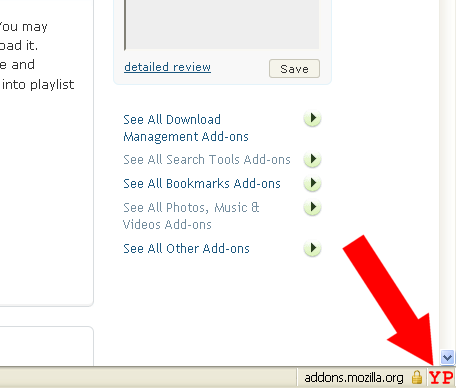
  1. Firstly, install YouPlayer Firefox add-on. Upon installation, click on “YP” on the bottom right side in your Firefox browser. YouPlayer-2
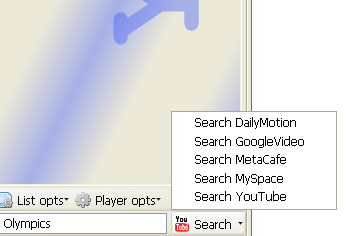
  2. To start to watch an online video, you can click on “Search” button in YouPlayer to search a video in YouTube, Google Video, Metacafe, DailyMotion or MySpace. YouPlayer-3
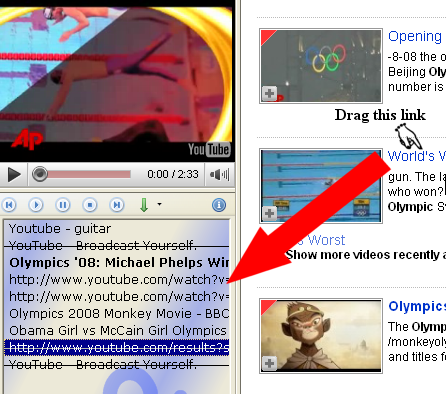
  3. You may drag and drop a link or local files from hard drive into a playlist window. When you double-click of it, it will be loaded in the video window. YouPlayer-4
  4. You can save the playlist and make it work as a bookmarker so you can always continue to watch the unfinished video in your playlist.
[via  Sizlopedia]


Read more...


Reveal *'s password field in Firefox

| Thursday, August 14, 2008 |

Here's a neat little trick I just came across over at FiddyP, it's not really a hack, just a simple code, a line of javascript that anyone can use without needing to know how it works. Without even needing me to explain it, the picture below pretty much describes it...

Reveal Password Trick Firefox Browser


All you got to do is just copy and paste the following code into your browser address bar whenever you see an asterisked form field and press enter...

  1. javascript:var els = document.getElementsByTagName('input'); for(var x=0; xlength; x++){ if(els[x].type.toLowerCase() == 'password' ){ var test = els[x].type = 'text';}}

The only downside is, this works only on Firefox and not any other browser!


Read more...