Search Box:   
Showing posts with label Vista. Show all posts

Run your laptop for longer time !

| Sunday, November 23, 2008 |

Now you dont need to worry about the fact that your laptop battery will drain soon without charging, if you are a Windows Vista user because now you have a small but a powerful utility that will save up to 70% of your battery by disabling those nice, but greedy Vista features.This tool covers almost all the options right from disabling vista Aero interface and sidebar to Selection of power management profile.Running in task bar with private workset of 5.5M and 0% CPU it will do all work for you, by enabling and disabling customizable features when power source changed or battery power fall under certain percent.

Features of Windows Vista battery Saver :

  • Disable Vista Aero interface
  • Disable Sidebar Activity
  • Disable Notification Messages
  • Select Power Plan Management.
The software is particularly made  to deal with the issue of faster battery drain in Windows Vista. This is a must if you are running WIndows Vista Home Premium or higher version.


Read more...


Increase Vista Boot Speed

| Tuesday, September 16, 2008 |

This method is for those who use dual core or quad core processors and wish to speed up the boot up time of your vista operating system.By default Vista is set to use only one core during system boot up. But you can easily change this using the system configuration editor.

Follow the steps given below to increase Vista boot speed.

  1. Open RUN by pressing the WIN Key + R.
  2. Type 'msconfig' in the RUN box:


  3. Click on the Boot tab, then click Advanced options:


  4. Click the check box next to Number of Processors and select the total number of cores that you wish to use:


  5. Click OK.

Leave your comments and URL of your blog
[via I,Suman]


Read more...


Minimize Open windows to thumbnails

| |

A couple of weeks back I wrote about a software MINIMIZE that minimized your running application windows as a thumbnail on your desktop. But the software worked only for windows XP. But I have found a similiar software for windows Vista users also.
The software is called THUMBWIN.


When you hit the minimize tab on any program in Windows, your application will disappear into the taskbar. But if you've got more than a few applications hiding out in your taskbar, it can be kind of tough to find the program you're looking for.

ThumbWin gives your minimized windows a bit more visual information. Once you install and run this tiny application, any time you minimize a window, a thumbnail will be created on your desktop. You can click the thumbnail to maximize a window, or click the close button on a thumbnail to exit a program.


Read more...


Win XP CD including drivers and softwares

| Tuesday, September 2, 2008 |

Now here is a cool tip for which I was waiting for long.I live in hostel and love experimenting with softwares. Many a times while uninstalling a software things go wrong and the ultimate solution left for me is to format my disk and reinstall windows. But then I am left to face another challenging task to reinstall all the softwares and addons and drivers once again.

Windows XP DVD including drivers and software


I was going through a post on one of the blogs and found out that now I can make a Windows CD/DVD with all the drivers,utilities,addons and hostfixes in that same CD/DVD.This type of installation CD/DVD will save you lot of time and the burden of installing all previously existed softwares, especially if you use lot of software applications like me.
MoiN has come up with a great guide on how to create Windows XP installation CD/DVD with latest hotfixes, drivers, DirectX, IE7, WMP11, Office 2007, and any software that you like to include. You can also remove useless components, apply tweaks and system hacks for best performance.


Read more...


Turn on/off thumbnails in Vista

| Wednesday, August 13, 2008 |

My friend Anubhav who recently had a trouble on his Laptop that he wasn't able to view the folder names in Vista drive is in trouble again.He hasnt used Vista much and that is why he falls in trouble quite often and then asks me to solve his problem.
This time he was not able to view pictures in thumbnail view which can be solved in the following two ways I found out on BauerPower.
The first way, you do the following within the folder you meant to view thumbnails in:

  1. Click on Organize > Folder and Search Options


  2. Click the View Tab
  3. Uncheck the "Always show icons, never thumbnails" option

  4. Click Apply, then OK.
The other option is to:

  1. Click Start > Contol Panel
  2. In classic view, click on Folder Options
  3. Click the View Tab
  4. Uncheck the "Always show icons, never thumbnails" option
  5. Click Apply, then OK.


Read more...


Make Your Desktop Icons Smaller or Larger with the Mouse Wheel

| |

Now this is very interesting.We can change the size of desktop icons in Windows Vistas by just rolling our mouse over!!
Yes you read it right.I got this information from Amit's website that the size of desktop icons can now be changed by mouse's roll by a very simple method as follows:

Left-click anywhere on the desktop, hold the ‘Control’ key and move the scroll wheel on the mouse - the desktop icons will grow smaller or larger depending upon the direction of your scroll.
But this feature is just applicable in Windows Vista and not in Windows XP.


Read more...


Missing files and folder names in Vista

| Monday, August 11, 2008 |

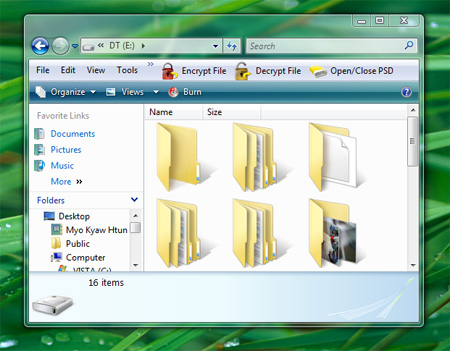
Yesterday my friend Anubhav was faced with a problem in Vista installed on his laptpop. The problem was that all of the folder-names and file-names were missing in large folder view under my drive in Vista. Strange ? huh. Take a look at the following snapshot.

Missing Folders names in Vista

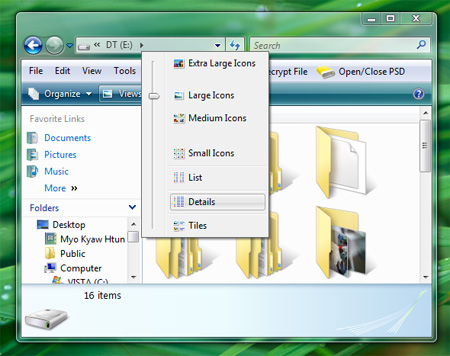
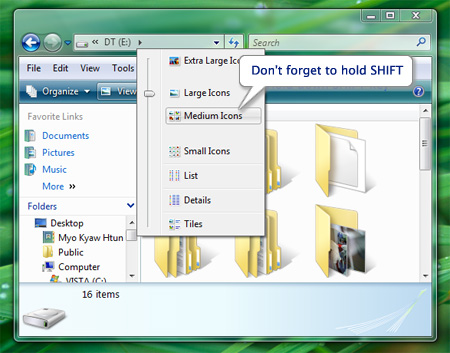
That is always happened when we hold the SHIFT key while we’re opening the drive or folder in Vista. To solve this problem, follow the steps.


1. Switch to detail view.

Switch to detail view

2. Hold down SHIFT key and change to “Medium Icons”.

SHIFT key Medium Icons

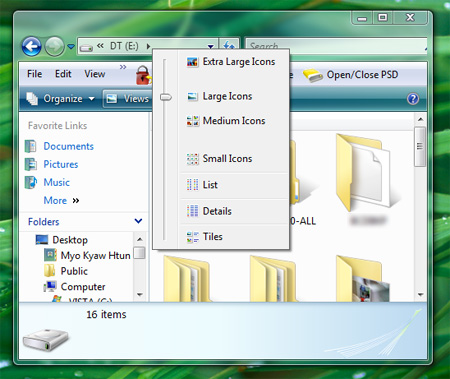
3. Close the Explorer and re-open it again. There you’ll get your folder names and file names back.

Larget FOlder views Vista


Read more...